
Step by step
Open Shopping and tap the Add, e.g. … field at the top. The barcode button beside it opens the scanner; under Where to?, choose Add to shopping list. You can also tell Freshy, for example: Put washing-up liquid on the shopping list.
If an item appears twice, the app shows 2× on the list — duplicate? If you already have it at home, it may say 2 still in stock. This helps avoid duplicate purchases.
In the shop, choose Store route. The list follows your route through the shop. Change the order using Sort › Sections & order.
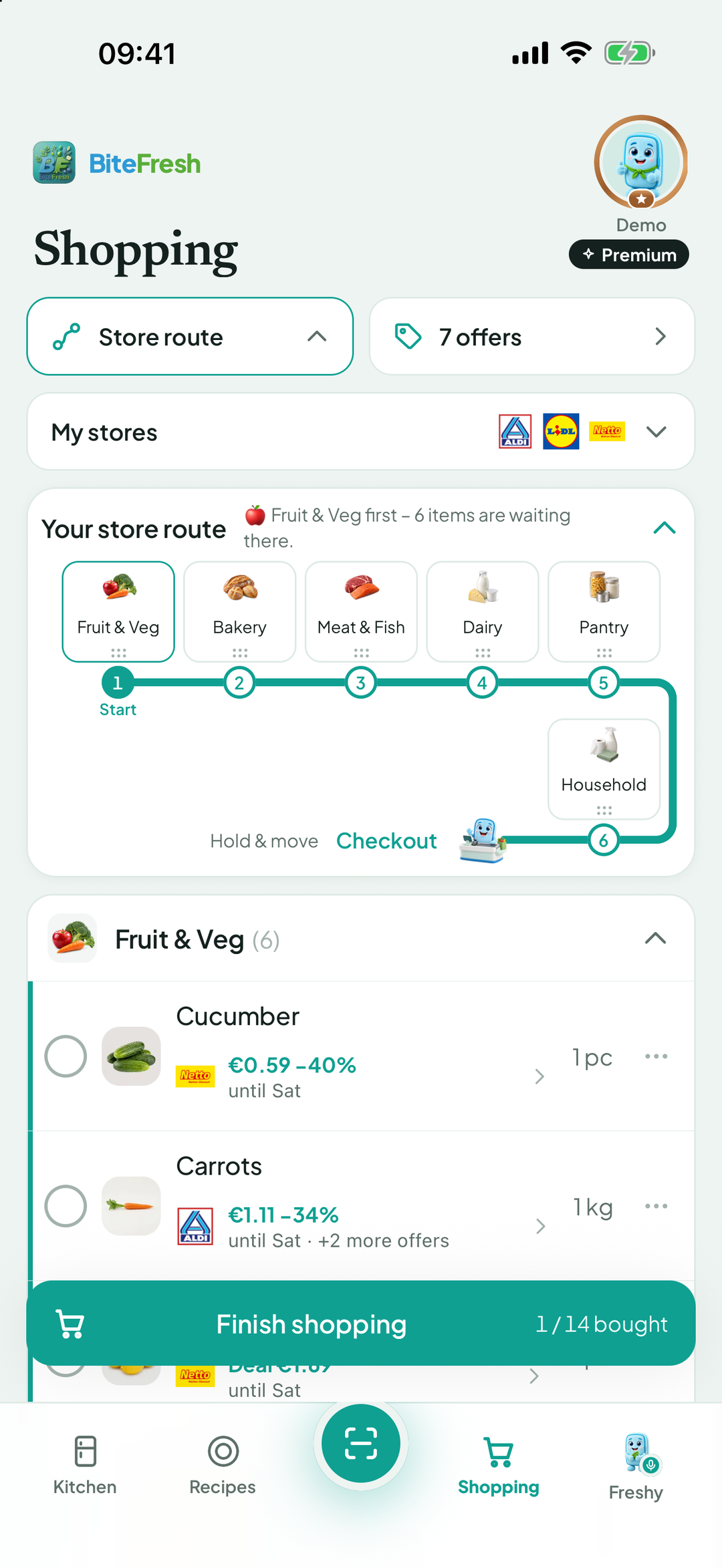
Check off what is in your trolley. Progress at the top shows how much you have finished.
At home, choose Finish shopping and one option: Add to stock (estimated prices), Check with receipt (real prices and comparison), or Budget book only.
For Check with receipt, choose Photograph receipt or Choose e-receipt file. List checked against receipt then shows missing items, and you choose Bought — remove from list or Forgotten — keep on list.
To record an individual item immediately, tap Add to stock beside it.
Good to know
The shopping list also works offline. It syncs once you are connected again.
Receipt matching reads the receipt using AI. Without Premium, simply finish shopping using Add to stock.
Terms
Shopping listStore routeFinish shoppingReceipt checkDuplicate purchase hint
Updated: 2026-09-30 · App version 1.0.4
More questions? Write to support@bitefresh.de.