
Step by step
Scan › Scan barcode: hold the barcode in the middle of the picture. Once Product recognised appears, you can add pack size and price, then tap Go to pantry.
If BiteFresh does not know the barcode (Not in the database), confirm the name, category and pack size yourself.
No barcode? Photograph a Single product. Freshy shows Product recognised. If the suggestion is wrong, choose the correct alternative under Or rather: and tap Go to pantry.
Manually: Add manually › Product name (required), plus optional Quantity (e.g. 1 L), Count, Category and Shelf life › Add to pantry.
Is the date printed on the pack? Use Enter best-before date. Freshy calculates the remaining days.
Already open? Enable Already opened? and the countdown starts today.
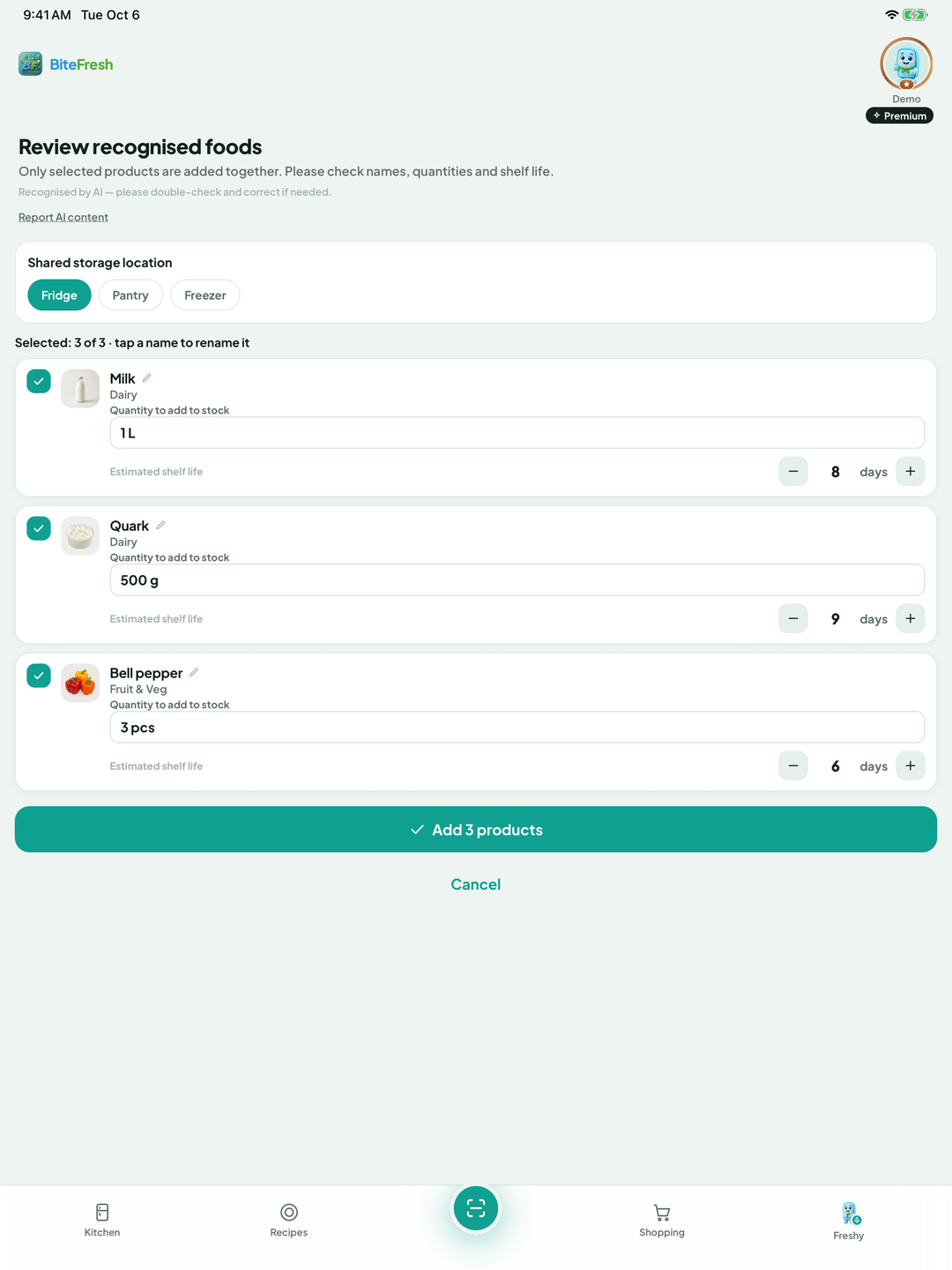
Several items in one photo: Scan fridge (Beta). Under Review recognised foods, select what to add, choose the Shared storage location, and tap Add … products.
Good to know
Scanned the same barcode again? The item counts are added together.
Photo recognition and Scan fridge use AI. Hidden products are not added. Check names, quantities and shelf lives before continuing.
Terms
Updated: 2026-09-30 · App version 1.0.4
More questions? Write to support@bitefresh.de.